
Set up GemiGuard VPN on Windows
Install the official WireGuard app and import your configuration file, a small file with your connection settings. All of the computer’s traffic then goes through GemiGuard VPN.
Button names checked in WireGuard for Windows on 8 November 2026.
Before you start
- A Windows computer, and permission to install apps on it.
- A GemiGuard VPN account with time on it. The computer uses one of your five device slots.
Steps
Install WireGuard
Download the official installer from wireguard.com and run it.
Add the computer in your account
In your account, open Devices and choose Add device. Give it a name such as
Laptop, keep Create the key in this browser (download a configuration file) and click Add device.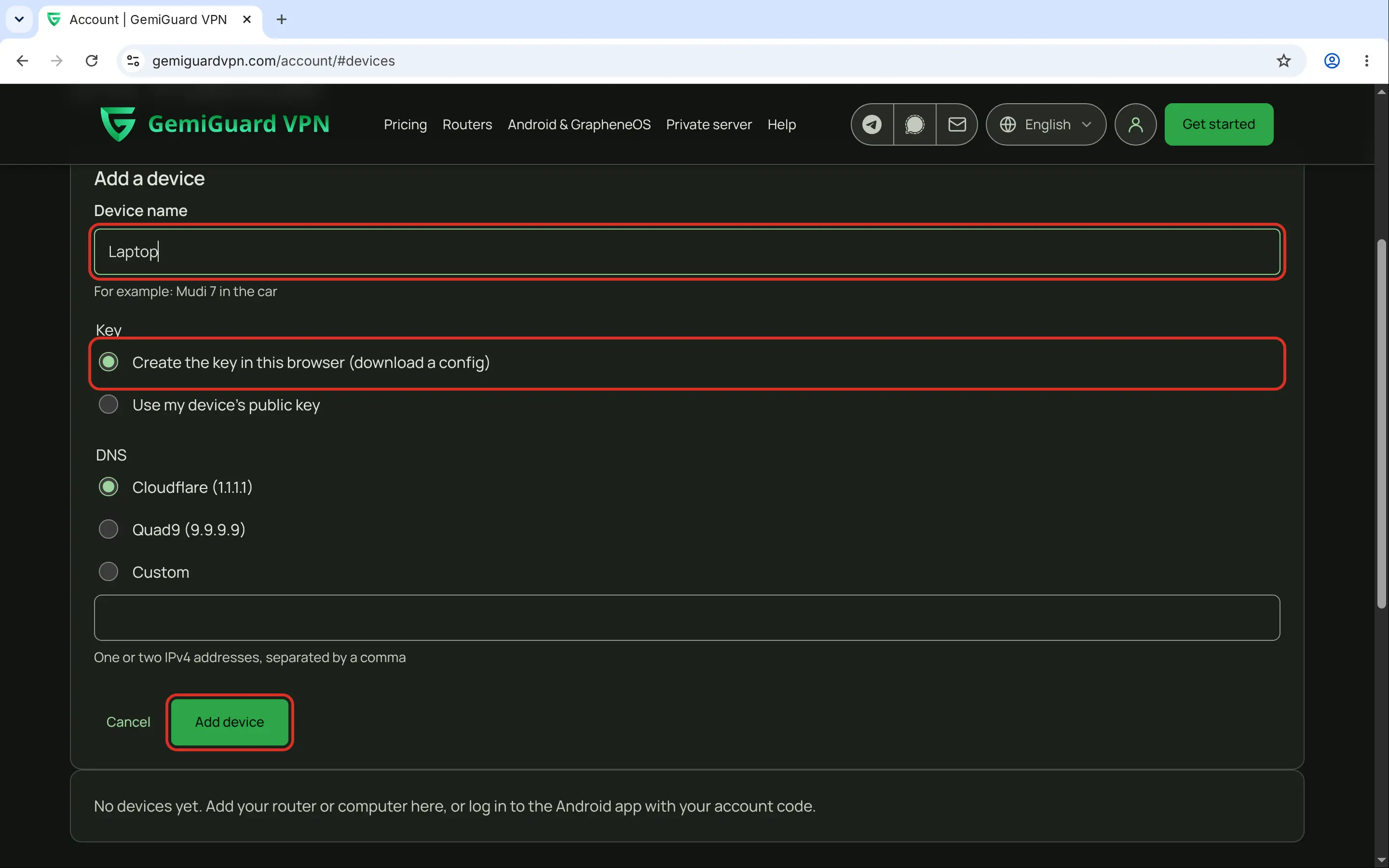
Download the configuration file
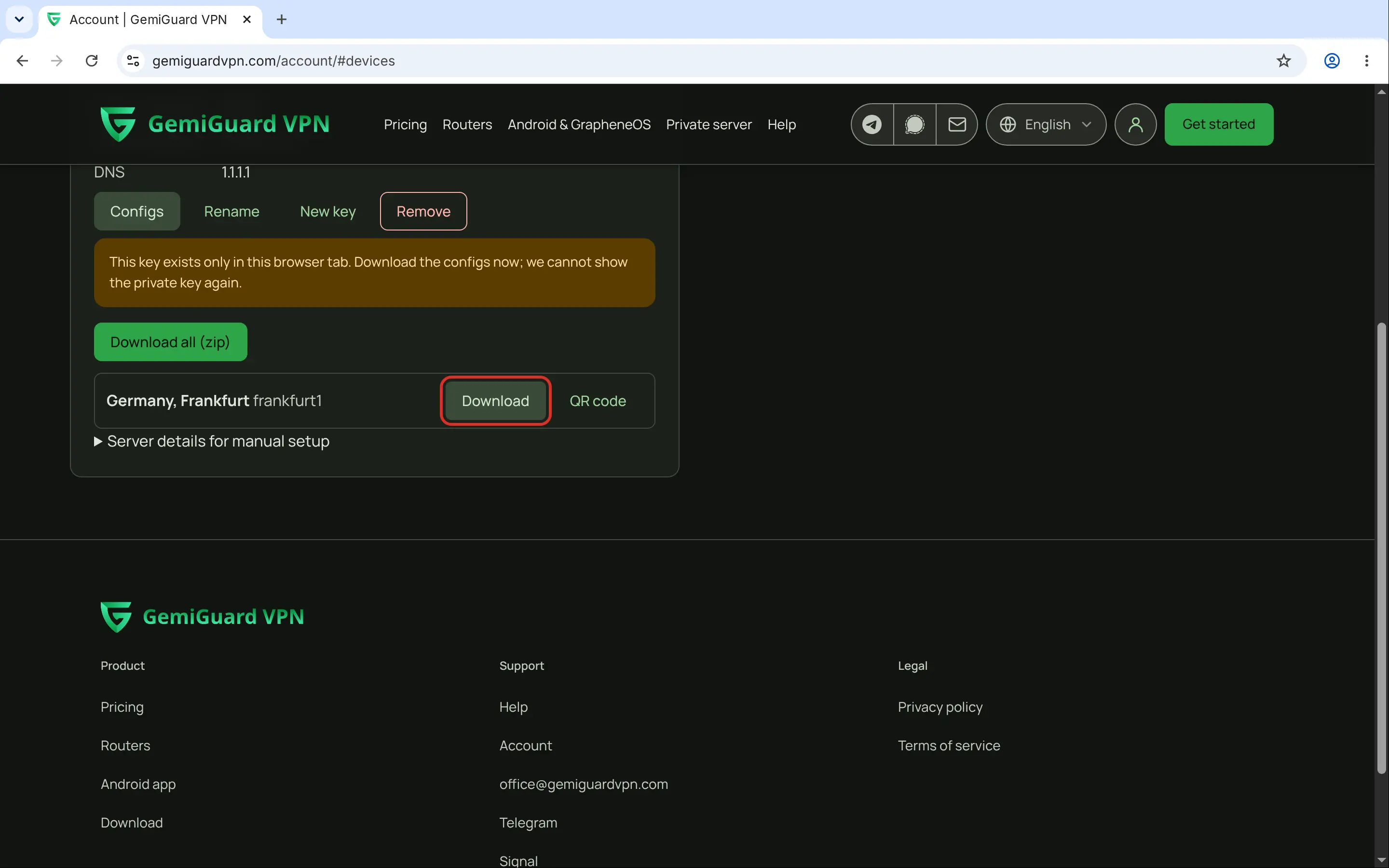
Click Download next to the server you want. The file is named after the server, for example
frankfurt1.conf.The key exists only in this browser tab: download every configuration file you want to use now, or all of them with Download all (zip).
Import the configuration file
In WireGuard, click Import tunnel(s) from file and choose the
.conffile. The tunnel appears in the list under the file name, herefrankfurt1.Activate the tunnel
Select
frankfurt1and click Activate. Status changes to Active.While the tunnel is active, WireGuard blocks traffic outside it (Block untunneled traffic (kill-switch) under Edit).
Check that it works
- In your account, open Devices: Last connected for the computer shows a time from the last minute or two.
- Open ip.gemiguard.com: it shows your public IP address, which should be the address of the server you chose.
Troubleshooting
- Last connected stays empty
- Our servers answer on the UDP port shown in your configuration file, which some networks block. Activate the tunnel of another server.
- I want another server
- Import the configuration file of that server and activate its tunnel. If you did not download it in step 3, choose New key on the device in your account and download a new set: the configuration files you imported before stop working.
Switch it off
Select the tunnel in WireGuard and click Deactivate.
Get a configuration file for your device
Each account covers up to five devices. 6 months cost 29 USDT, 12 months 49 USDT, 24 months 79 USDT.