
Set up GemiGuard VPN on OpenWrt
Install WireGuard in LuCI and import your configuration file, a small file with your connection settings, as a new interface. Every device behind the router then goes through GemiGuard VPN.
Tested on OpenWrt 24.10.8 on 7 November 2026.
Before you start
- A router running OpenWrt 24.10 with LuCI and a working internet connection.
- A GemiGuard VPN account with time on it. The router uses one of your five device slots.
- A computer connected to the router.
Steps
Download a configuration file for the router
In your account, open Devices and choose Add device. Give it a name such as
OpenWrt router, keep Create the key in this browser (download a configuration file) and add it.Download the configuration file of the server you want. The file is named after the server, for example
frankfurt1.conf. Open it in a text editor: you paste its contents in step 6.Update the package lists
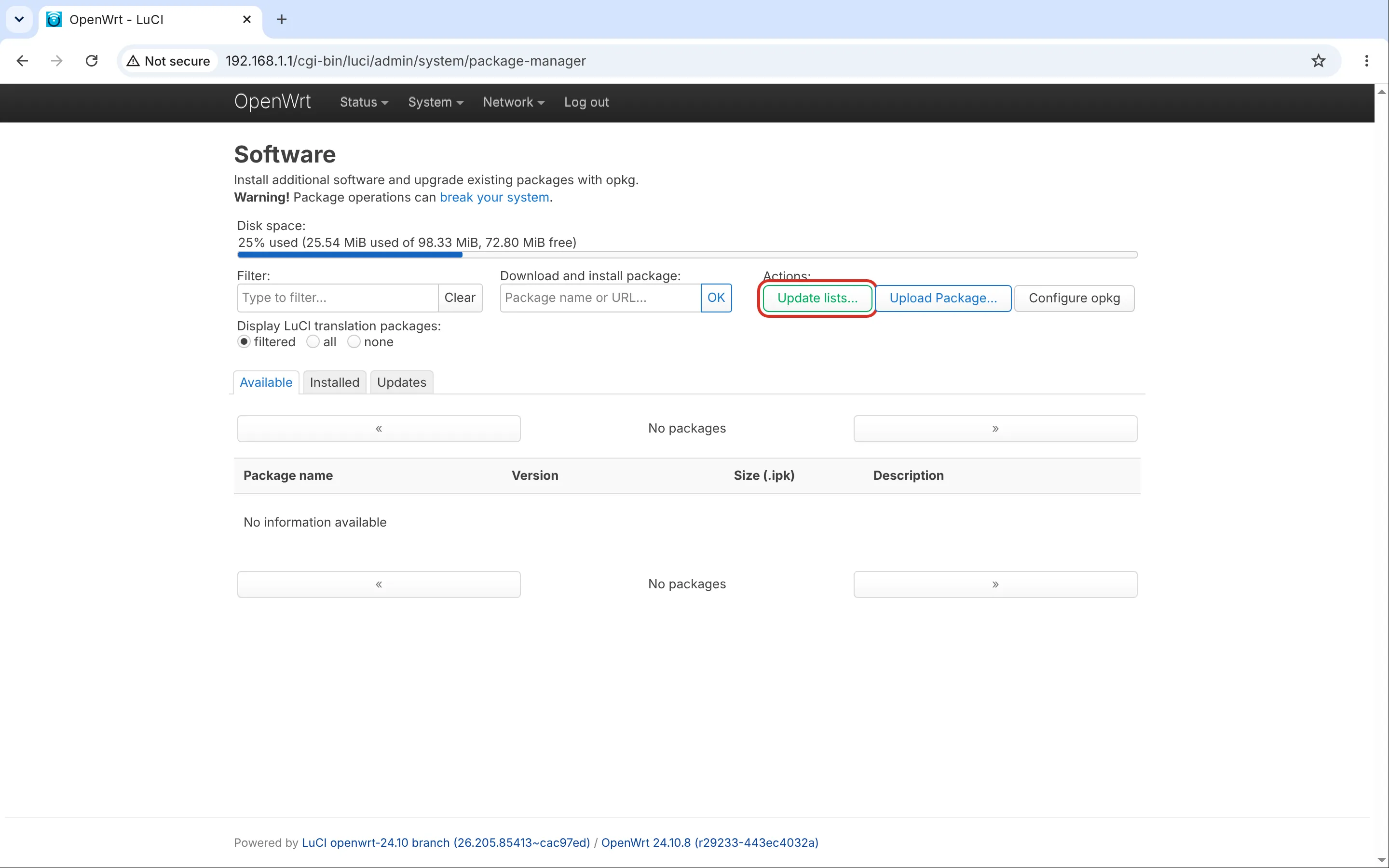
In LuCI, open System, then Software, and click Update lists. Wait until the list has loaded, then close the window.
Install WireGuard support
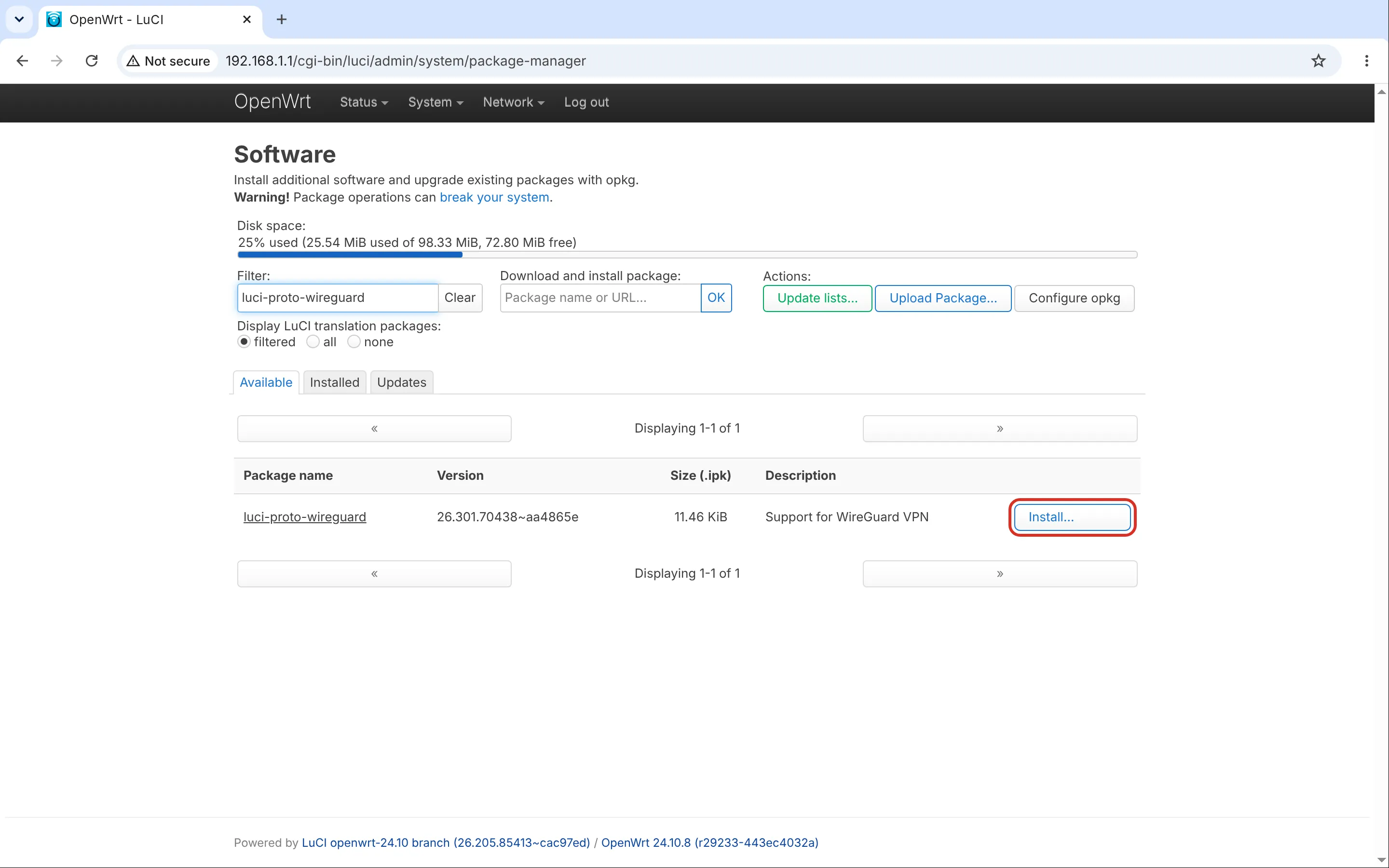
Type
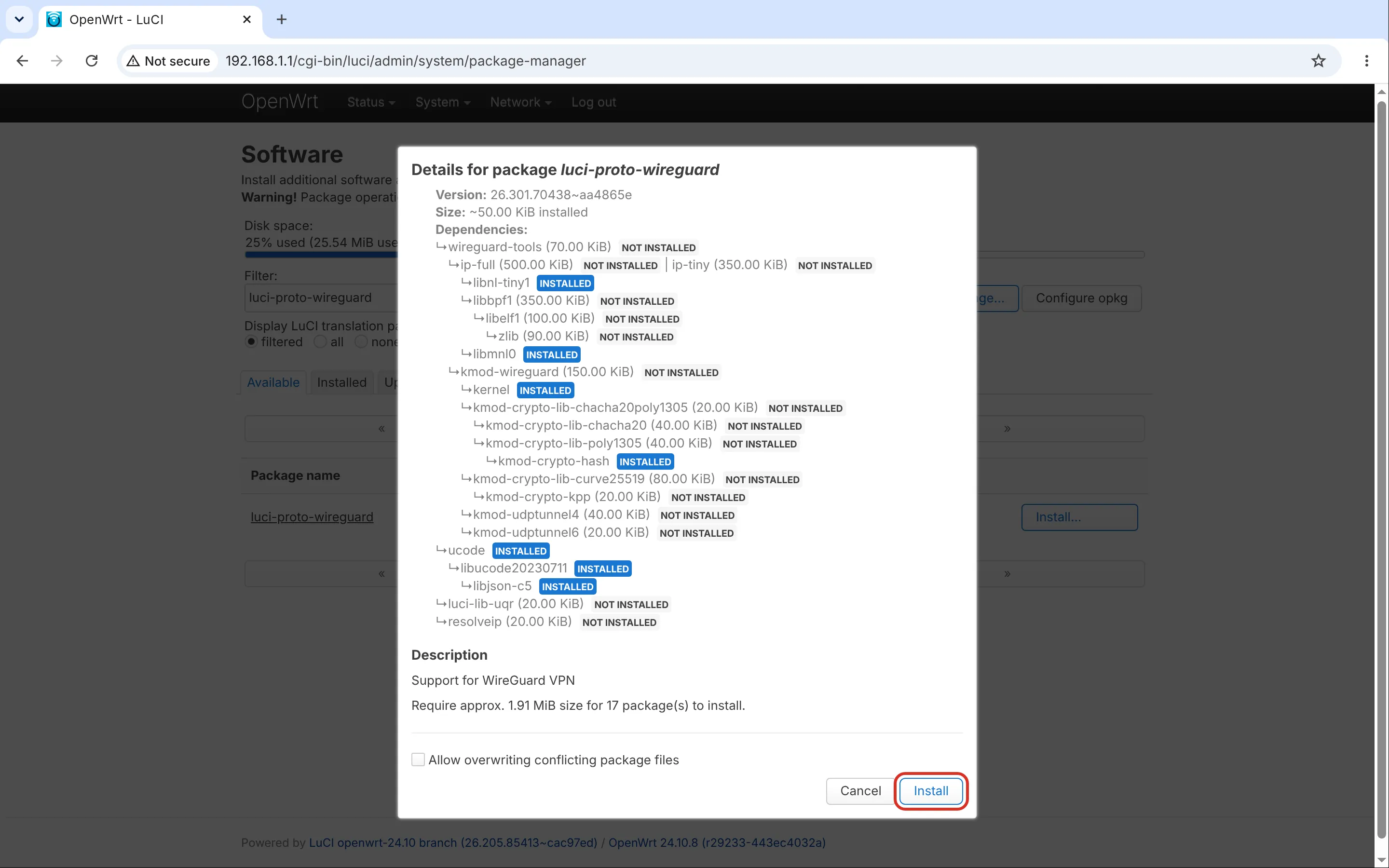
luci-proto-wireguardin Filter and click Install next to it.Click Install to confirm.
Reboot the router
Open System, then Reboot, and click Perform reboot. After the restart, WireGuard VPN appears in the protocol list.
Create the interface
Open Network, then Interfaces, and click Add new interface. Enter the name
gemiguard, choose the protocol WireGuard VPN and click Create interface.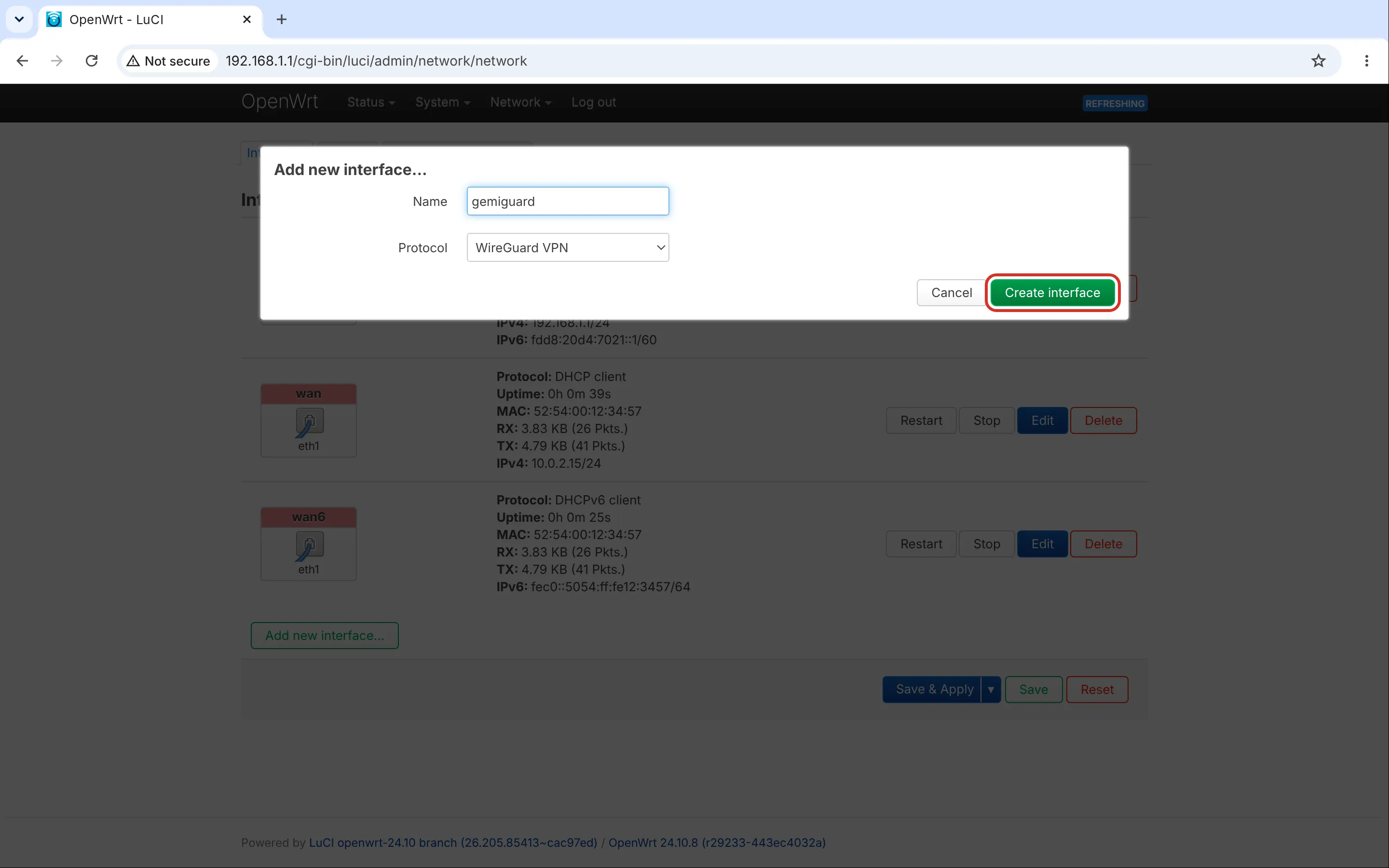
Import your configuration file
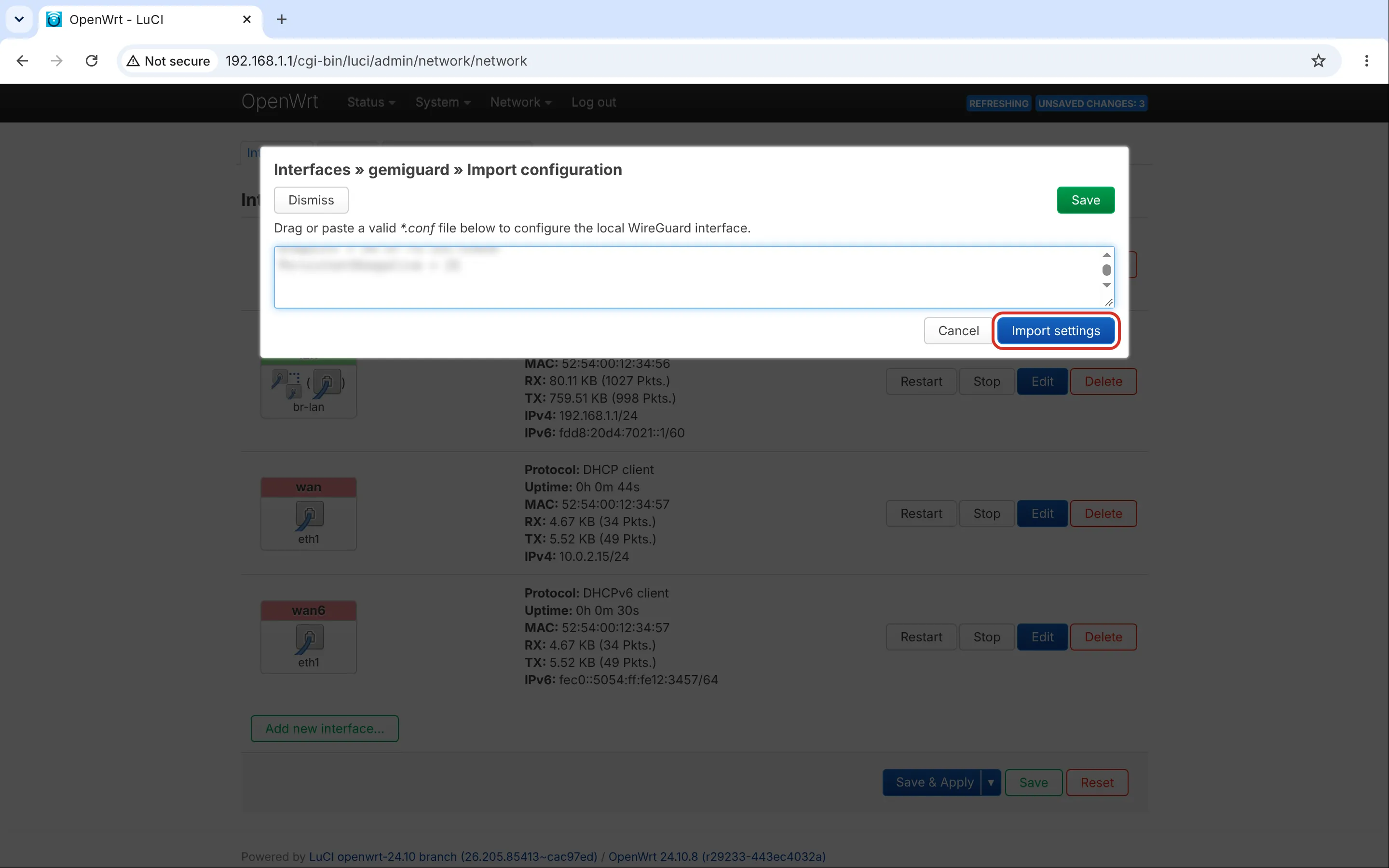
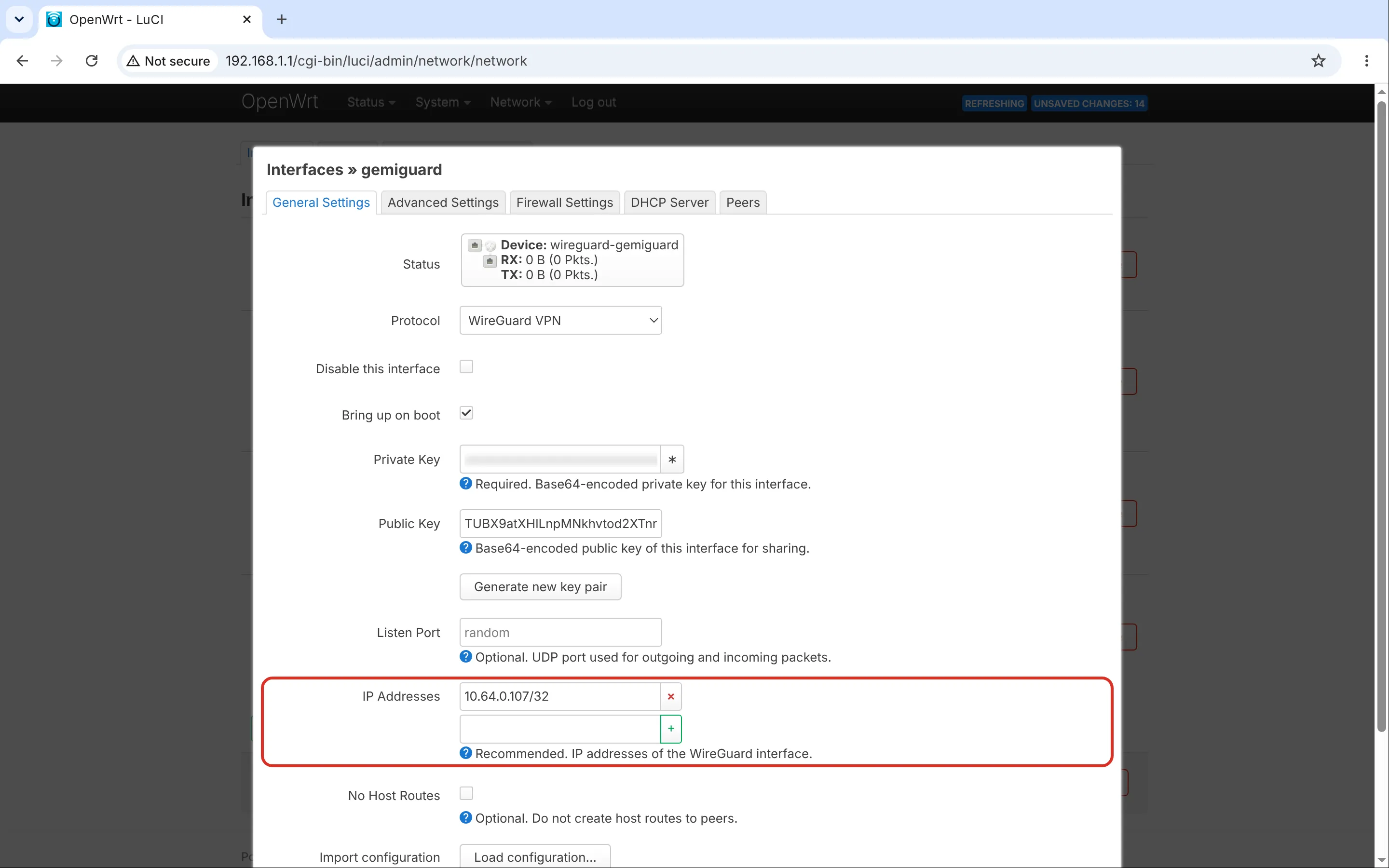
On General Settings, click Load configuration. Paste the whole contents of your
.conffile and click Import settings.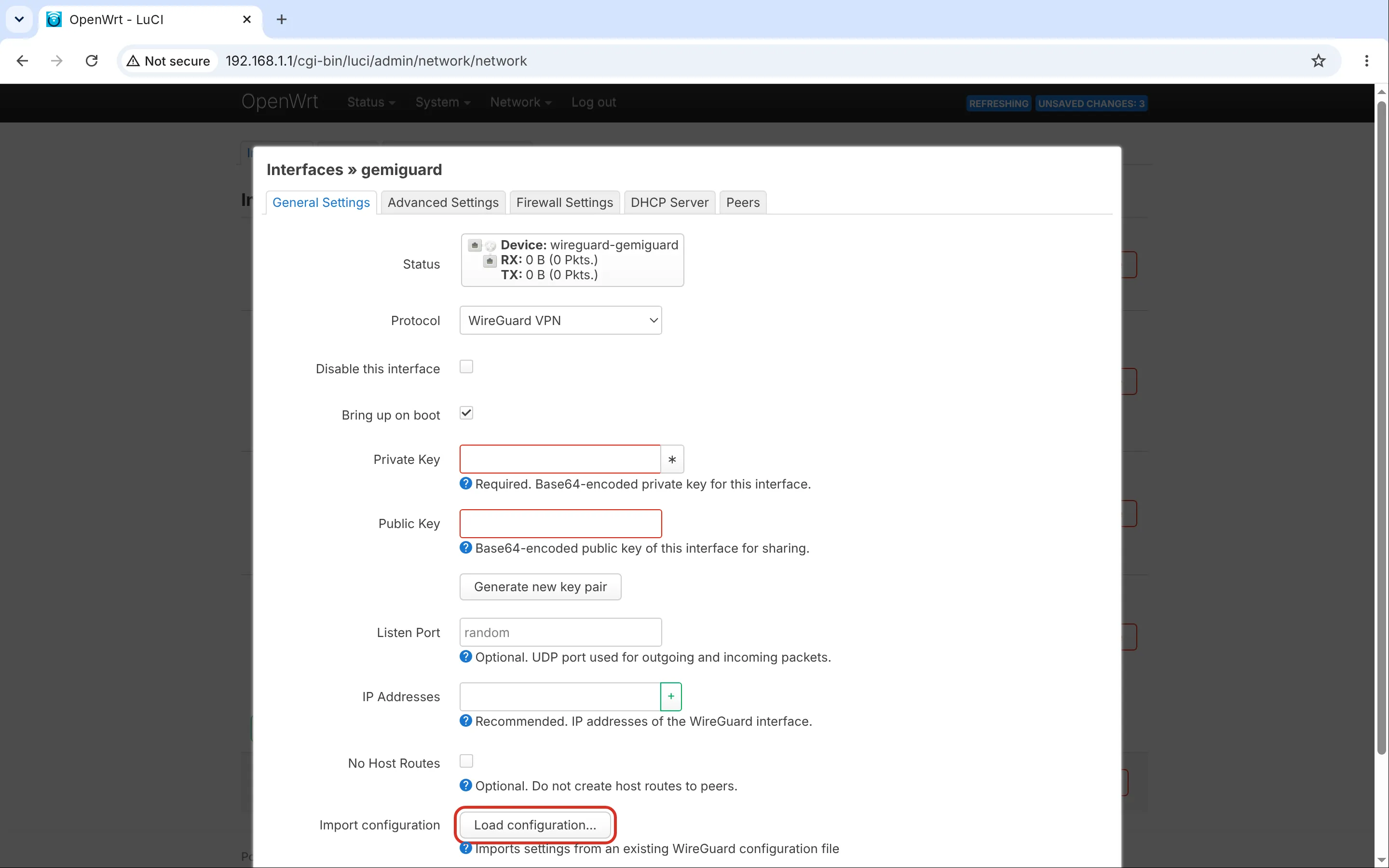
Send all traffic through the tunnel
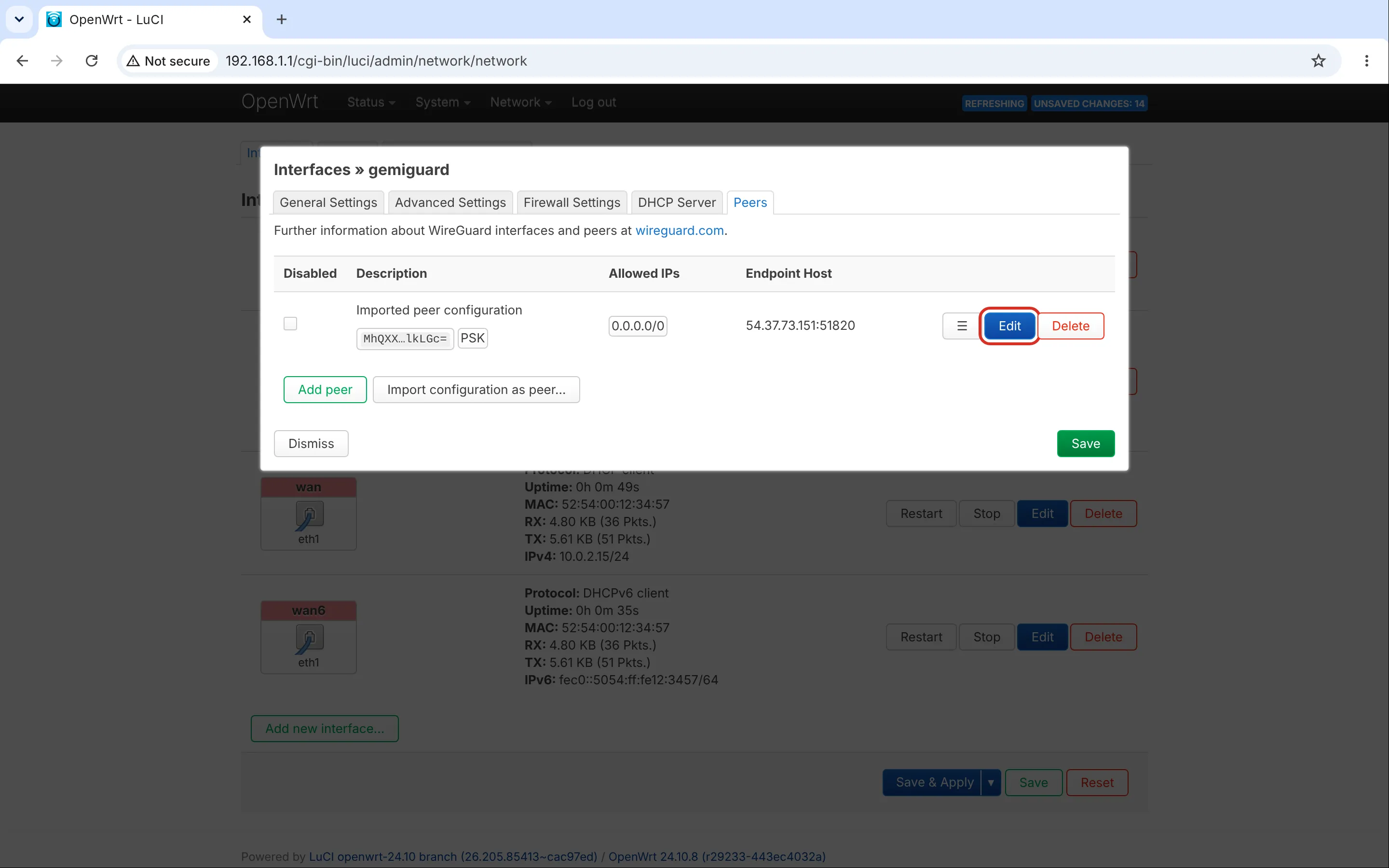
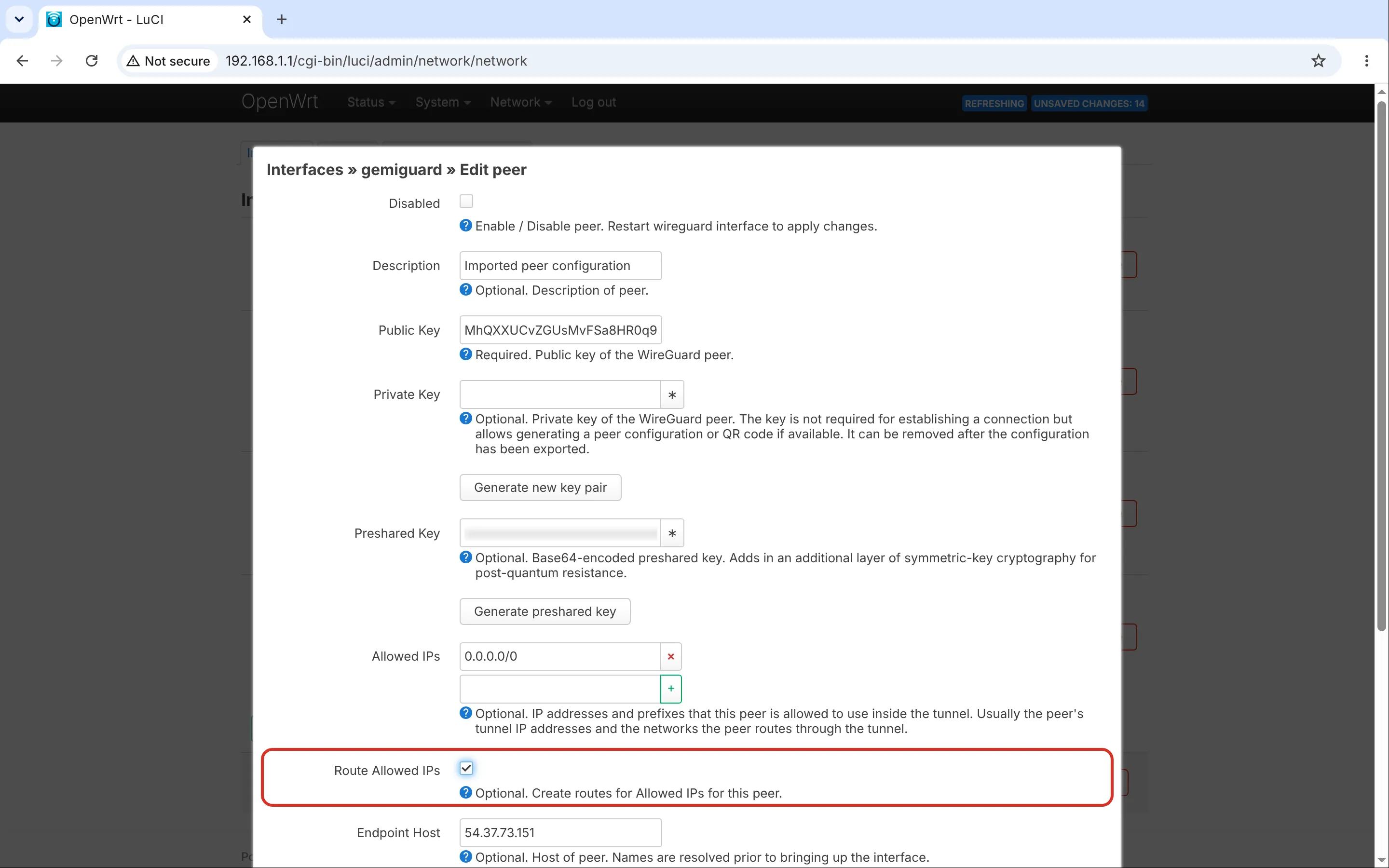
Open the Peers tab and click Edit on Imported peer configuration. Tick Route Allowed IPs and click Save.
Put the interface in the wan zone
Open the Firewall Settings tab, choose
wanin Create / Assign firewall-zone and click Save.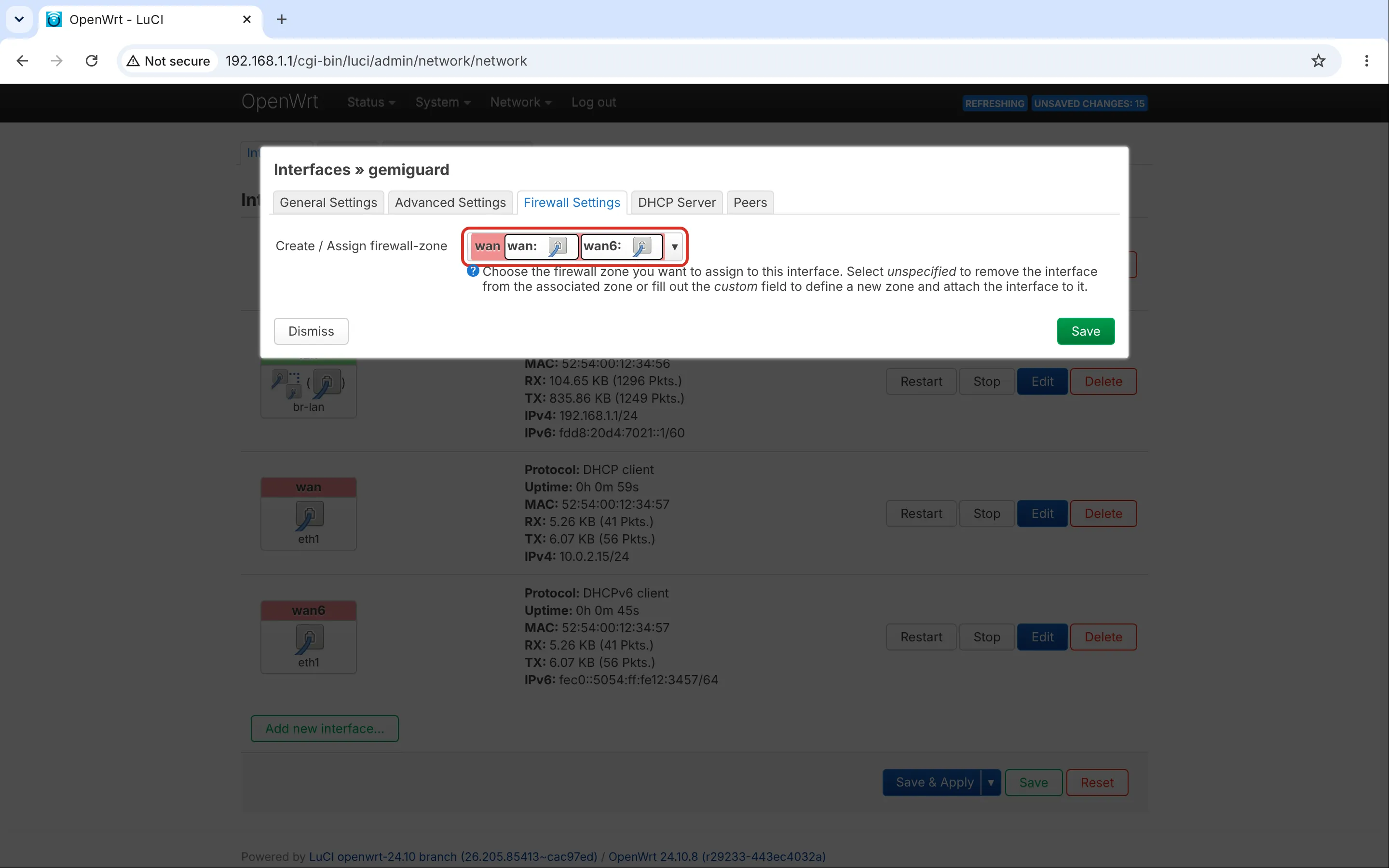
Save and apply
Click Save & Apply. The interface
gemiguardappears in the list and connects within a few seconds.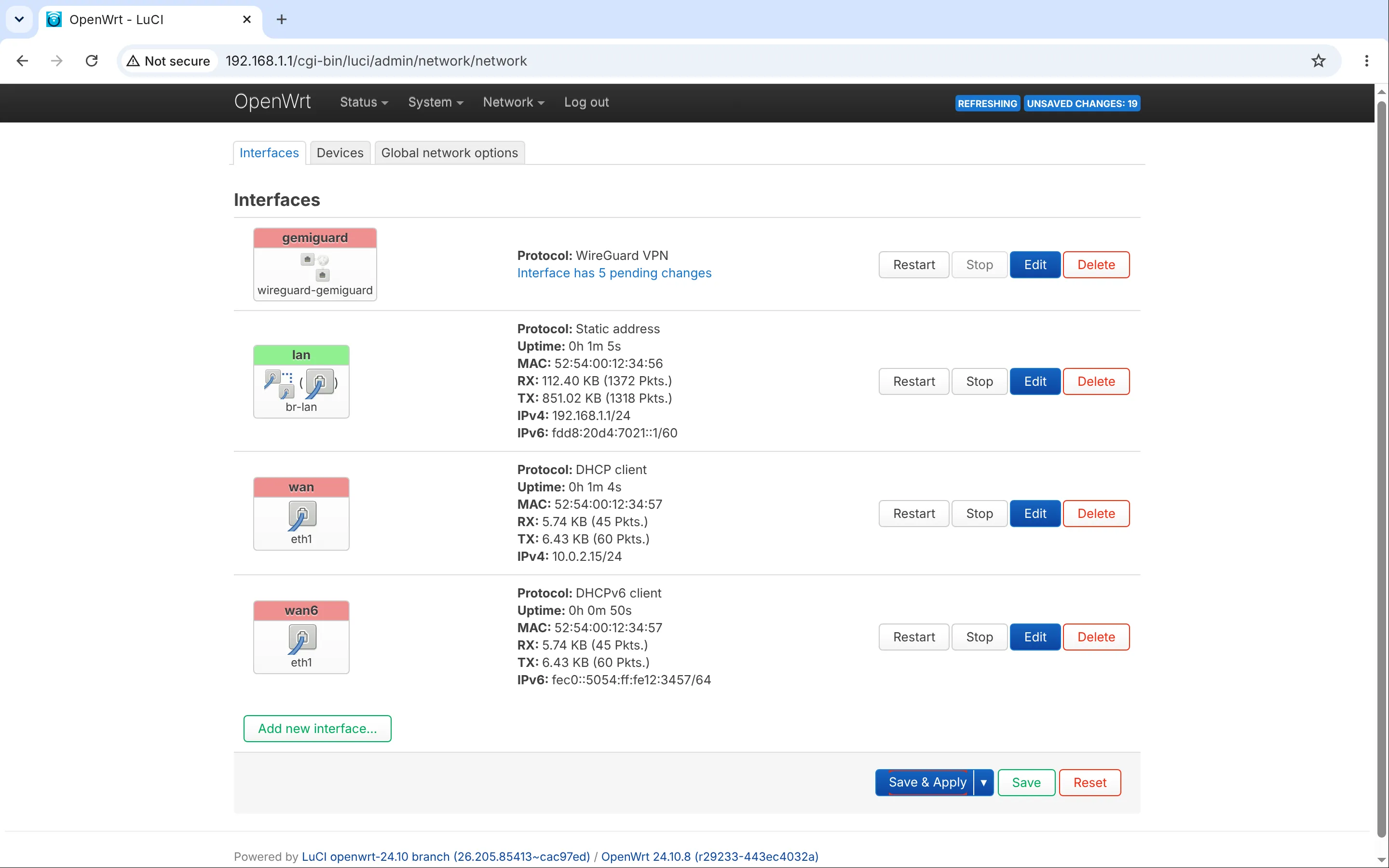
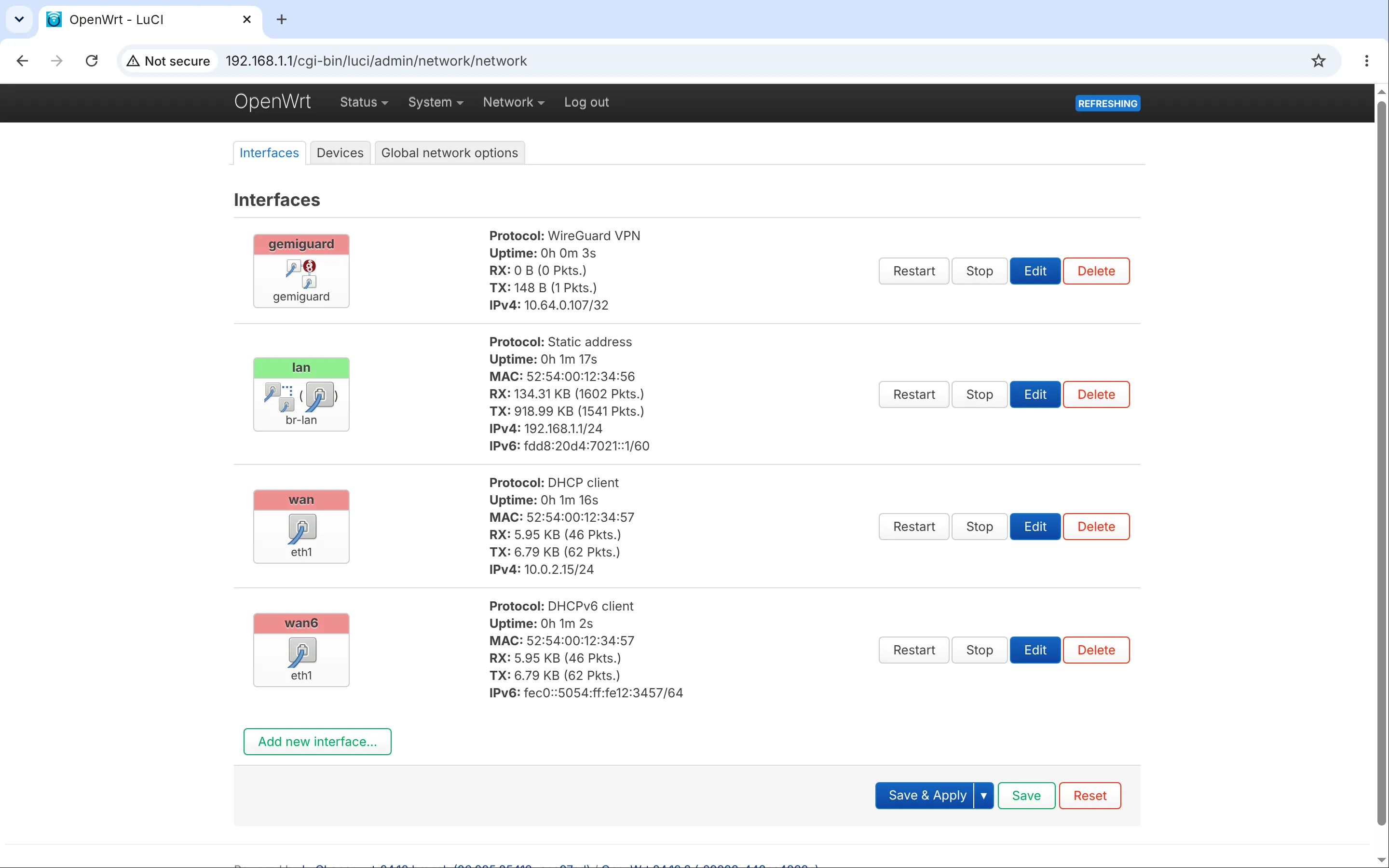
Check that it works
- In your account, open Devices: Last connected for the router shows a time from the last minute or two.
- On a computer behind the router, open ip.gemiguard.com: it shows your public IP address, which should be the address of the server you chose.
Use only the VPN’s DNS (optional)
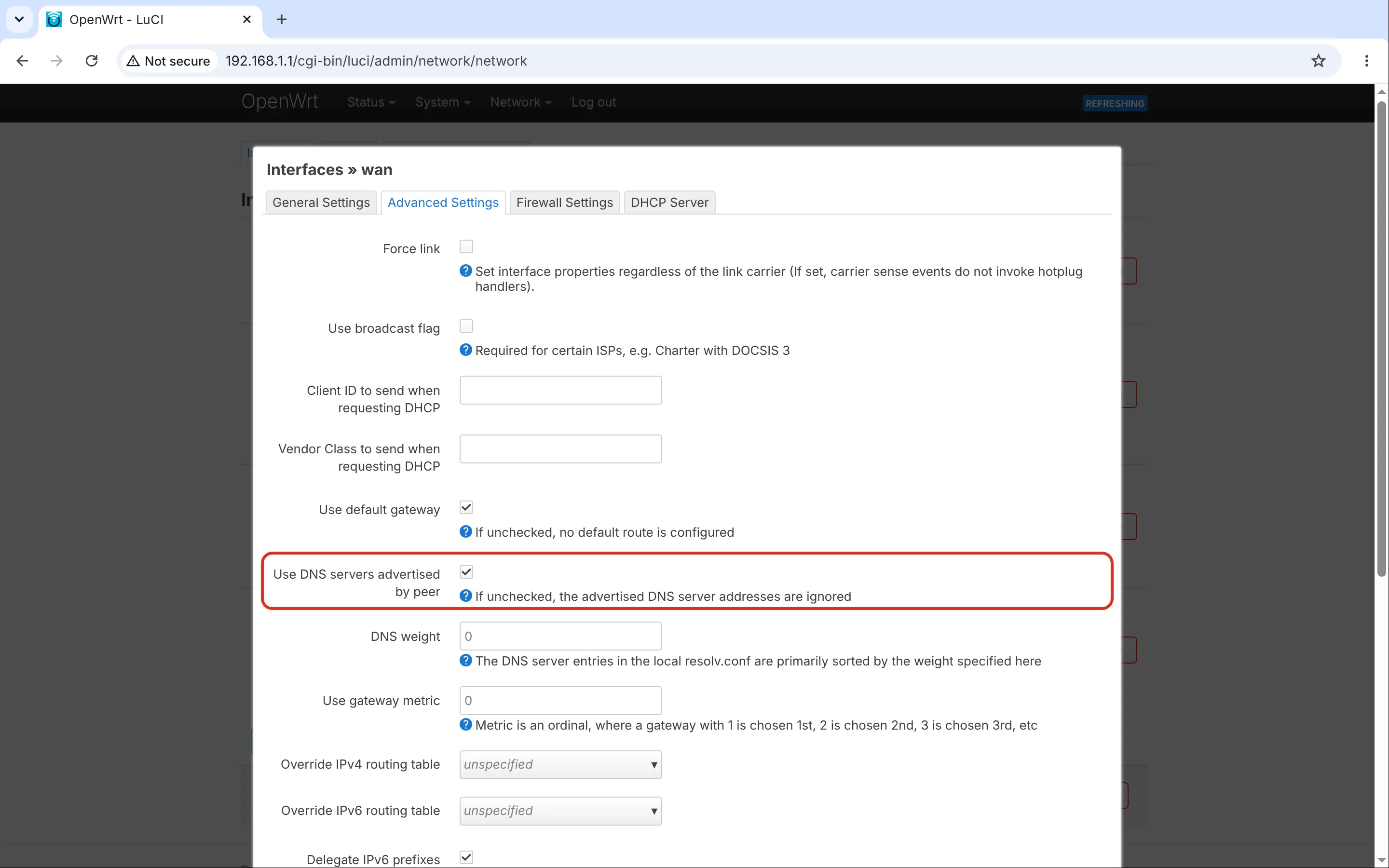
OpenWrt keeps your provider’s DNS servers next to 1.1.1.1. To use only 1.1.1.1, open Network, Interfaces, click Edit on wan, open Advanced Settings, untick Use DNS servers advertised by peer, then click Save and Save & Apply.
Troubleshooting
- WireGuard VPN is not in the protocol list
- Reboot the router after installing
luci-proto-wireguard(step 4). - The router is connected, but devices behind it have no internet
- Check that Route Allowed IPs is ticked on the peer and that the interface is in the
wanzone, then click Save & Apply again. - Last connected stays empty
- Our servers answer on the UDP port shown in your configuration file, which some networks block. Try the configuration file of another server, and check that the router itself has internet.
- I want another server
- Choose New key on the device in your account and download that server’s configuration file. Delete the
gemiguardinterface (Network, Interfaces, Delete, then Save & Apply) and repeat steps 5 to 9 with the new configuration file.
Switch it off
Open Network, Interfaces and click Stop on gemiguard, or Delete to remove it.
Get a configuration file for your router
One device slot covers every device behind the router. 6 months cost 29 USDT, 12 months 49 USDT, 24 months 79 USDT.
Guides for other routers
- MikroTik RouterOS 7
- Teltonika RutOS
- GL.iNet Mudi 7 (GL-E5800)
- GL.iNet Opal (GL-SFT1200)
- GL.iNet Flint 4 (GL-BE14000)
- GL.iNet Slate 7 Pro (GL-BE10000)
- GL.iNet Flint (GL-AX1800)
- GL.iNet Mango 2 (GL-MG1300)
- GL.iNet Mudi v2 (GL-E750V2)
- GL.iNet Puli (GL-XE300)
- GL.iNet Mango (GL-MT300N-V2)
- GL.iNet Shadow (GL-AR300M16)
- GL.iNet Flint 3e (GL-BE6500)
- GL.iNet Flint 3 (GL-BE9300)
- GL.iNet Beryl 7 (GL-MT3600BE)
- GL.iNet Flint 2 (GL-MT6000)
- GL.iNet Slate 7 (GL-BE3600)
- GL.iNet Beryl AX (GL-MT3000)
- GL.iNet Spitz AX (GL-X3000)
- GL.iNet Puli AX (GL-XE3000)
- GL.iNet Spitz Plus (GL-X2000)
- All router guides